
How to bulk upload pins to Pinterest with one CSV file
Pinterest's bulk upload turns one spreadsheet into up to 200 pins. Here is how it works, step by step: the CSV columns, picture links, publish dates and the errors that stop a pin. It works with any tool, and at the end you'll see the faster way with GizmoBloom.
The short version
- Use a Pinterest business account (it's free).
- Put your pin pictures online, each at a public link.
- Make a CSV file with one row per pin (the columns are below).
- On a computer, open Pinterest's Settings → Import content and upload the file.
- Wait for Pinterest's email, then check your scheduled pins.
What is Pinterest bulk upload?
Bulk upload (Pinterest also calls it bulk create) makes many pins at once from a .csv file. A CSV is a plain spreadsheet saved as text, with commas between the cells. Each row is one pin. Each column is one detail of that pin: its title, its picture, its board, and so on.
Pinterest's help pages say one upload can hold up to 200 images or videos. You can publish the pins right away or give each one a future publish date. It works on a computer only, not in the phone app.
Some people call it a mass upload or a batch upload: it's the same feature. It saves the most time when you sell many products, like printables, KDP books or print-on-demand designs.
What you need
- A Pinterest business account. It's free: in Settings → Account management, choose "Convert to a business account". Business accounts must be public.
- A computer with a web browser.
- Your pin pictures, ideally 1000 × 1500 pixels, as PNG or JPG.
- A public link to each picture.
- The exact names of your boards.
- A spreadsheet app: Google Sheets, Excel or LibreOffice.
The CSV columns Pinterest reads
Pinterest's spreadsheet guidelines use these eight column names in the first row. Keep them as they are: one header row, then one row per pin.
| Column | Required? | What to put |
|---|---|---|
| Title | Yes | The pin title, up to 100 characters. Example: Fall Coloring Pages for Preschool |
| Media URL | Yes | A public link to the picture or video file itself, usually ending in .png, .jpg or .mp4. |
| Pinterest board | Yes | The board name. Add a section after a slash: Coloring Pages/Fall. If the board doesn't exist, Pinterest creates it. |
| Thumbnail | Videos only | Leave it empty for pictures. For a video: a time (00:05), a number of seconds, or an image link. |
| Description | No | Up to 500 characters about the pin. |
| Link | No | The page the pin opens, like your product page. |
| Publish date | No | 2026-11-10, or 2026-11-10 |
| Keywords | No | Search phrases, separated by commas. |
Optional cells can stay empty. Keeping all eight columns is the safest way to match Pinterest's template.
How to bulk upload pins to Pinterest, step by step
1. Switch to a business account
Already have one? Skip this step. Otherwise, open Settings → Account management and choose "Convert to a business account". Your pins and followers stay the same.
2. Make your pin pictures
Pinterest recommends a 2:3 shape: 1000 × 1500 pixels. It notes that pins taller than 2:3 might get cut off in people's feeds. Save each picture as PNG or JPG, with a clear name like fall-coloring-pin-1.png.
3. Put the pictures online
The Media URL must be a public link to the file itself. A share link that opens a preview page or asks for a login won't work. Use your own website's media library, or an image host that gives direct links. Test each link in a private browser window: you should see only the picture.
4. Fill in the spreadsheet
Type the eight column names in row 1. Add one row per pin below. Copy your board names from Pinterest exactly: a small typo makes a new, extra board. Keep titles to 100 characters and descriptions to 500. If your text has accents or emoji and you use Excel, save with File → Save As → "CSV UTF-8".
5. Add publish dates
Leave Publish date empty to publish right away. For a future day, write year-month-day: 2026-11-10. To choose the hour too, add a T and the time in UTC: 2026-11-10T14:00:00. UTC is not your local time. For example, 14:00 UTC is 9 AM in New York in winter. A date without a time publishes at the time of day you uploaded the file.
Pinterest's scheduling help says pins can be scheduled up to 30 days ahead. Watch your spreadsheet, too: if 2026-11-10 turns into 11/10/2026, format the column as Text and type the date again.
6. Upload the CSV
On a computer, open Pinterest and go to Settings → Import content. Next to the .csv upload option, click Upload, then drag your file into the box. One upload holds up to 200 pins. Split a bigger batch into several files.
7. Check the result
Pinterest works through the file in the background and sends you an email. It may also contact you if something needs fixing. Then open your profile and count your scheduled pins against your CSV.
More than one Pinterest account? Stay on the one you uploaded to until the new pins show up. In our own use, pins went to whichever account was open when Pinterest finished the file.
Common bulk upload errors and how to fix them
Pinterest's help page names one error clearly: a badly formatted publish date means the pin is not published. Most other problems come from the picture links or the sheet.
- Wrong date format. Use 2026-11-10 or 2026-11-10T14:00:00, nothing else. Check that your spreadsheet didn't change it.
- The picture link isn't public. Open it in a private window. If you see a login page or an error, Pinterest can't fetch the picture either.
- The link isn't the file. A Media URL should lead to the picture itself, like …/pin-1.png, not to a gallery or folder page.
- An extra board appeared. The board name in the sheet didn't match yours exactly, so Pinterest made a new one. Fix the name in the sheet and delete the extra board.
- Pins publish at odd hours. The time was read as UTC. Convert your local time before you type it.
- Strange symbols in the text. Accents or emoji turned into odd characters: save the file as CSV UTF-8.
Tips for pins people find and save
- Start the title with what people search. Type your topic into Pinterest's search bar and note the suggestions. "Fall coloring pages for preschool" says more than "My autumn set".
- Write the description for people. One to three plain sentences: what it is, who it's for, what they get. Use search phrases naturally, not as a list.
- Use the Keywords column. A handful of real search phrases, close to your title.
- Pick specific boards. "Fall Coloring Pages" tells people more than "My Products".
- Space your pins out. A few pins a day at set times keeps new pins coming for weeks, all from one upload.
- Don't repeat a pin back to back. For one product, make several different pictures and spread them days apart.
- Link to the exact page. Send each pin to the product it shows, not to your home page.
- Keep every CSV you upload. It's your record of what is scheduled.
Do it faster with GizmoBloom
GizmoBloom is a Windows app for print-on-demand sellers. It makes the pins, plans their days and times, and writes the CSV. You upload the file yourself: the app never logs in to Pinterest.
1. Make the pins
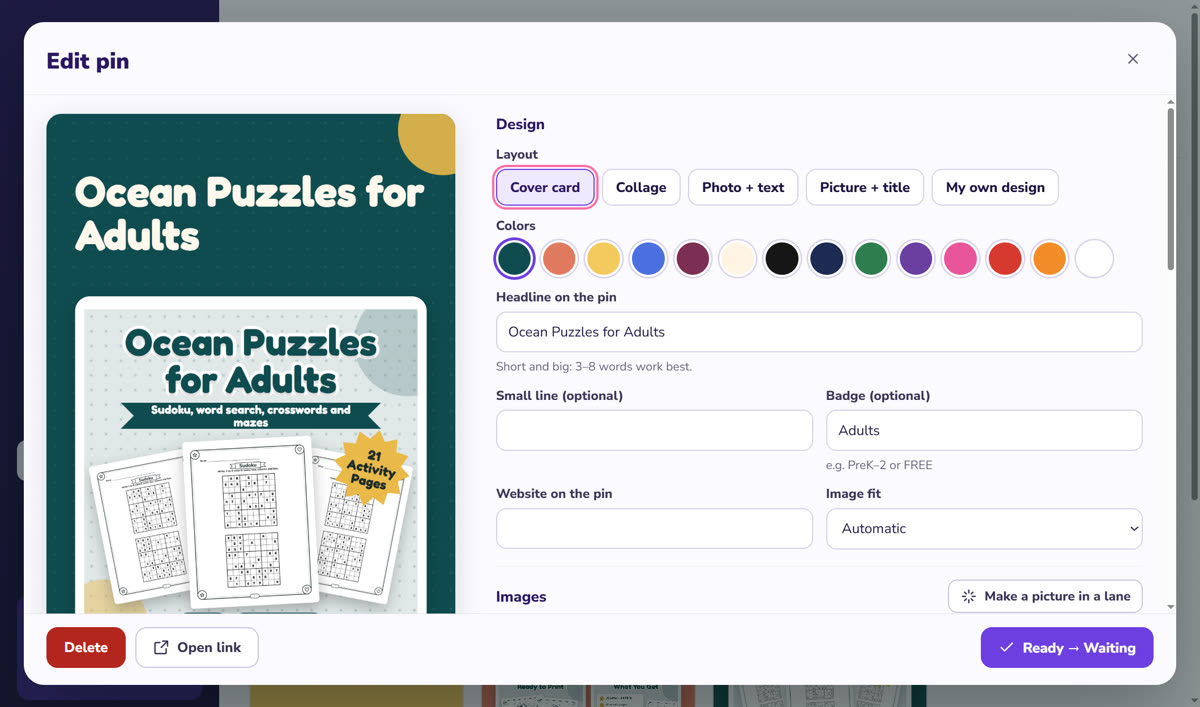
- Start "From a book", "From a link", "From a picture idea" or "From my image"
- "From a link" reads your product page (its title, description and pictures) and makes several pins from it
- 5 layouts and 14 colors, at 1000 × 1500 pixels
- Title and description counters (100 and 500 characters) and a "Suggest" button for keywords
- Your boards are saved once in Settings, then picked from a list
2. Let them wait in line
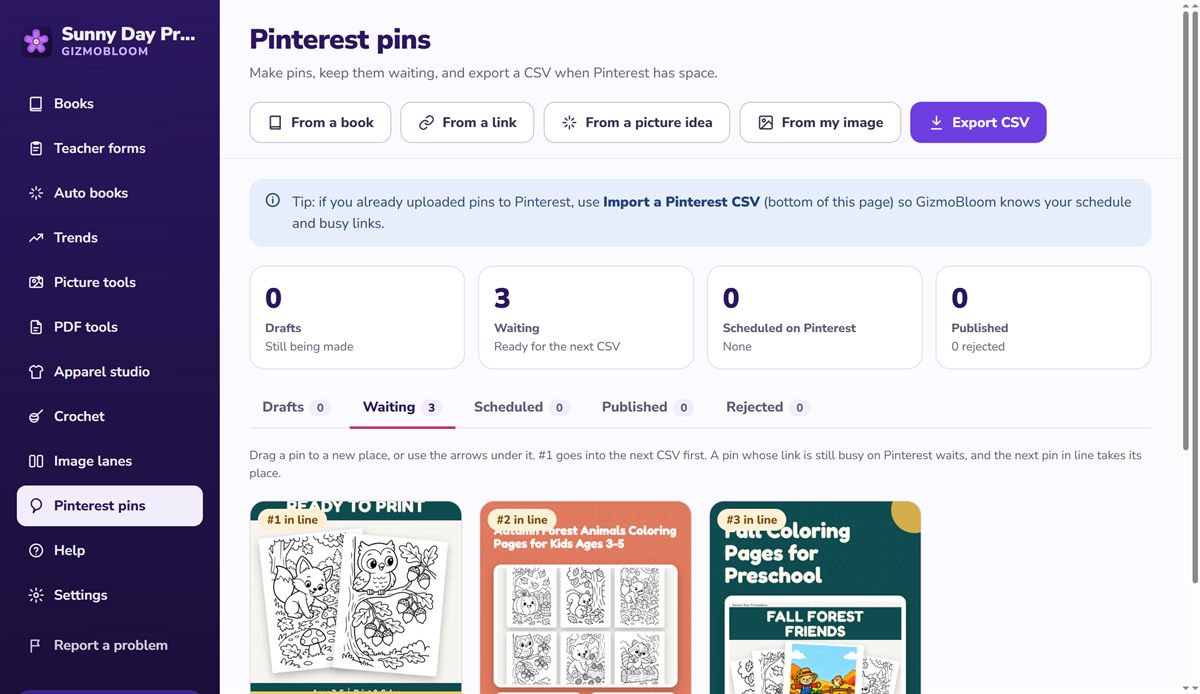
- "Ready → Waiting" puts a pin in line. Drag to change the order: #1 goes into the next CSV first
- Set your posting times once, in your own time (for example 09:00 and 17:30): each pin gets its day and time, written in the UTC format Pinterest reads
- Two pins for the same link never go in the same CSV, and a link that already has a pin scheduled waits its turn
- A reminder when your scheduled pins run low, and a warning before you post the same picture twice
3. Export the CSV
- Type how many pins are scheduled on Pinterest now: the CSV fills only the free space, up to your maximum in Settings
- Your pictures go online through your free Sanity account, or into a folder you upload to your own web space first
- Used Pinterest's bulk upload before? Import those CSV files, so GizmoBloom knows your schedule and busy links
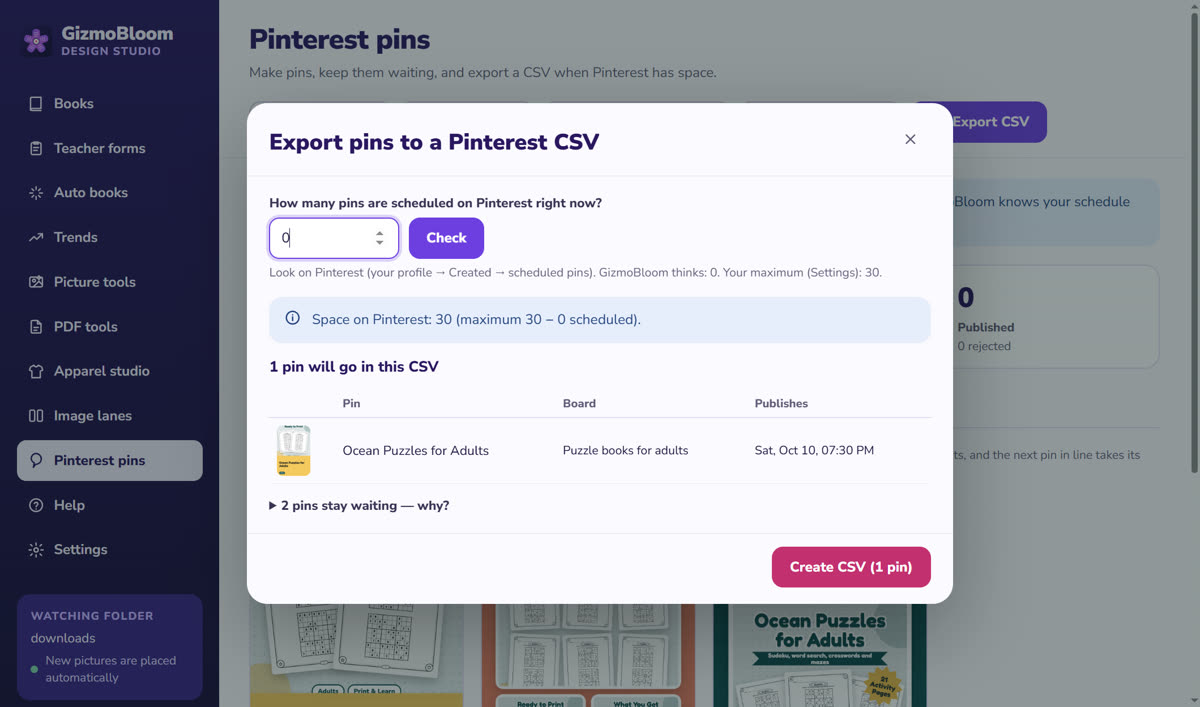
Made a book in GizmoBloom, like a puzzle book for Amazon KDP? "From a book" turns its cover and pages into pin pictures.
Questions about Pinterest bulk upload
Do I need a business account to bulk upload pins?
Yes. A Pinterest business account is free: convert a personal account in Settings → Account management.
How many pins can I upload at once?
Up to 200 images or videos in one upload, according to Pinterest's help page. For more, split your pins into several CSV files.
How far ahead can I schedule pins?
Pinterest's help page on scheduling says up to 30 days in advance. In the CSV, give each pin a Publish date, or leave it empty to publish right away.
Why didn't my pins upload?
Check the date format first (2026-11-10 or 2026-11-10T14:00:00), then open each Media URL in a private browser window. Pinterest's email after the upload may tell you what to fix.
Can I bulk upload video pins?
Yes, the same CSV takes videos. Put the video's link in Media URL and fill the Thumbnail column with a time, a number of seconds or an image link.
Does GizmoBloom post to Pinterest for me?
No. It makes the pins and the CSV, and you upload the CSV with Pinterest's own bulk upload. It never logs in to Pinterest.
Make your next batch of pins free
Try every feature for 3 days, no card needed. Files made during the trial carry a small SAMPLE mark.
More guides: how to make a puzzle book for KDP, how to make a printable PDF booklet and how to turn a picture into a crochet pattern. All guides →